
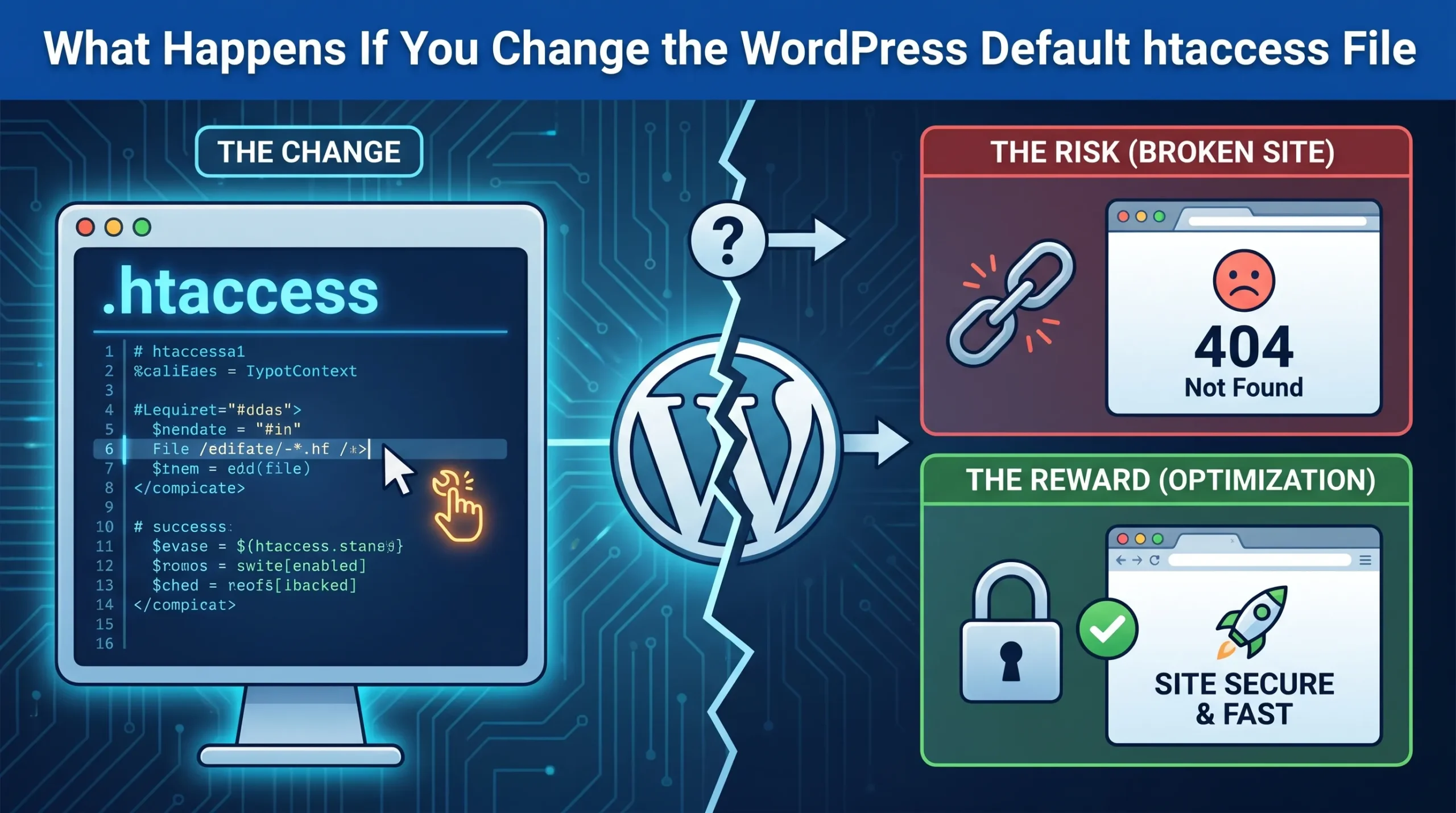
If you change the wordpress default htaccess file, you directly affect how your site handles access, URLs, and security. This critical file manages site access, clean permalinks, and server behavior.
When you edit it, you might see:
-
Improved site performance and better SEO if you use correct rules
-
Website inaccessibility, broken features, or lower search rankings if you make mistakes
WordPress generates this file dynamically and relies on essential default rules to keep your site running smoothly. Next, you will see how these changes can impact your site’s functionality.
Effects of Changing WordPress Default htaccess
When you change the wordpress default htaccess file, you change how your site works at a basic level. This file acts as a gatekeeper for your wordpress site. It controls who can access your site, how your URLs look, and how your server responds to requests. You do not need to touch the main server configuration file because the htaccess rules let you make changes just for your site.
Site Functionality Changes
You will notice immediate changes in how your site functions after editing the wordpress default htaccess file. The file lets you:
-
Rewrite URLs to make them clean and easy to remember.
-
Set up custom error pages for things like “404 Not Found.”
-
Block or allow access to certain files or folders based on IP addresses.
If you add the right htaccess rules, you can boost your site’s speed and security. For example, you can block certain attacks and keep sensitive information safe. Plugins often use this file to add extra security or speed up your site. However, if you make a mistake, you might break important features or even lock yourself out of your own site.
Permalink and URL Issues
Permalinks are the permanent web addresses for your posts and pages. The wordpress default htaccess file manages these links with special rewrite rules. If you change or delete these rules, you may see:
-
404 errors when you try to visit pages that used to work.
-
URLs that look strange or do not match your settings.
-
Problems with plugins that need to add their own htaccess rules.
Common problems include broken rewrite rules, which can make your site show “Page Not Found” errors even for pages that exist. If you use the wrong syntax, your whole site might stop working. Sometimes, plugins can also change the htaccess file and cause unexpected issues with permalinks.
Here are some issues you might face:
-
404 errors for pages that should work.
-
Custom rewrites that disappear if placed in the wrong spot.
-
Server problems that affect how URLs are handled.
Security Impacts
Changing the wordpress default htaccess file can make your site safer or put it at risk. You can use htaccess rules to:
-
Block access to important files like wp-config.php.
-
Protect your login and admin pages from brute-force attacks.
When you set up the right rules, you stop hackers from reaching sensitive parts of your site. You can also prevent attacks like SQL injection or cross-site scripting. Over 40% of security breaches happen because of weak file access controls. If you make a mistake, you might expose private files or let anyone reach your admin area.
Note: Always double-check your security rules. One wrong line can open your site to attacks.
The wordpress default htaccess file is a powerful tool in every wordpress installation. When you understand how it works, you can use it to protect your site and keep everything running smoothly.
Risks and Common Problems
When you change the wordpress default htaccess file, you face several risks that can affect your site’s stability and accessibility. Understanding these problems helps you avoid mistakes that could disrupt your wordpress installation.
Site Errors and Downtime
Small errors in htaccess rules can cause big problems. You might see your website go offline or display error messages. The table below shows some common risks you face when editing this file:
|
Risk |
What Happens |
|---|---|
|
Broken website |
Your site does not load at all |
|
Inaccessibility |
You cannot reach your site or admin area |
|
Lost search ranking |
Search engines cannot crawl your site properly |
|
404 errors |
Pages show “Not Found” even if they exist |
If you delete the htaccess file or remove default rules, your permalinks may stop working. This means users see 404 errors instead of your content. The default htaccess rules direct requests to the right place, so your site functions as expected.
Access Restrictions
The htaccess file controls who can access different parts of your site. If you write incorrect rules, you might block yourself or your visitors. Here is what can happen:
-
You lose access to the admin area or dashboard.
-
Unauthorized users can reach private sections.
-
Syntax errors prevent anyone from visiting your site.
-
Some directories become unavailable, causing features to break.
Proper syntax is important. Even a small mistake can lock you out or expose sensitive areas.
Redirect Loops
Redirect loops happen when your site keeps sending users from one URL to another without stopping. You might see a browser error saying the page has too many redirects. Common causes include:
-
HTTP and HTTPS settings that conflict between your CMS and server.
-
Plugins that add conflicting htaccess rules for caching or security.
Redirect loops can make your site unusable until you fix the rules. Always check for conflicts after adding new plugins or changing settings.
The default htaccess rules are essential for every wordpress installation. Without them, permalinks break and users see 404 errors. These rules make sure requests reach the correct files so your site works smoothly.
Safely Editing WordPress Default htaccess
When you want to change the wordpress default htaccess file, you need to follow safe steps. This helps you protect your site’s functionality and performance. Mistakes can cause problems, but you can avoid them with the right process.
Backup and Restore Steps
Before you edit anything, always create a backup. This lets you restore your site if something goes wrong. Many managed wordpress hosts offer built-in backup tools that make this easy. You should also download a copy of your .htaccess file to your computer. Here are the steps you should follow:
-
Backup your wordpress site so you can restore it if needed.
-
Use a staging site to test changes before you update your live site.
-
Download a backup of your .htaccess file.
-
Log in to your hosting control panel.
-
Open File Manager and go to the public_html folder.
-
Find the .htaccess file and make a copy before editing.
Editing Guide
You have several ways to edit the htaccess rules. You can use FTP and your favorite text editor, or you can use plugins like WP htaccess editor and HTACCESS File editor. Some plugins, such as Yoast SEO, let you edit the file from your dashboard. When you add new htaccess rules, place them before the line that says # BEGIN WordPress. This keeps your wordpress installation stable and avoids conflicts.
Recovery Tips
If you make a mistake, you can fix it. Rename your .htaccess file to .htaccess_old and refresh your site. If your site works, the problem was in the file. You can also generate a new .htaccess file by going to Settings → Permalinks and clicking Save. For redirect errors, check for duplicate rules and remove them.
If the file is missing, create it manually or resave permalinks. You can also enable WordPress Debug Mode in wp-config.php to find errors.
Troubleshooting After Changes
After you edit the htaccess file, you might notice unexpected problems on your site. Knowing what to do next helps you restore your wordpress site and keep it running smoothly. This section explains what you can do when errors appear, how to bring back the default settings, and when you should seek expert help.
Fixing Common Errors
You may see errors like “500 Internal Server Error,” broken links, or endless redirect loops after changing the htaccess file. These issues often happen because of a small mistake in the file. Here is what you can check:
-
Look for missing or extra characters in your htaccess rules.
-
Remove any recent changes and test your site again.
-
Rename the current htaccess file to something else, such as .htaccess_old, to see if the problem goes away.
-
Use your browser’s incognito mode to rule out caching issues.
Restoring Defaults
Sometimes, you need to restore the default htaccess file to fix your wordpress site. You can follow these steps:
-
Check if you can access your admin panel.
-
If you can, use a file manager plugin to delete the damaged htaccess file.
-
Go to Settings, then Permalinks, and click Save Changes. WordPress will create a new default htaccess file.
-
If you cannot access the admin panel, use your web panel or FTP to find the root directory.
-
Make hidden files visible and rename the old htaccess file.
-
Copy the default wordpress htaccess code into the new file.
This process brings your site back to its original state and fixes most permalink or access issues.
When to Get Help
Some problems need professional support. You should reach out for help if:
-
You see repeated changes to your htaccess file or plugins folder.
-
You feel lost after a security breach or hack.
-
You have tried restoring defaults, but your site still does not work.
-
You need to update all plugins, change passwords, or install a security plugin, but you are unsure how.
By understanding what to check and when to ask for help, you can keep your wordpress site safe and functional after making changes.
Best Practices for htaccess Management
You need to know what best practices help you manage your WordPress htaccess file safely. Following these practices keeps your site stable and secure.
Regular Backups
You should always keep a backup of your htaccess file. Backups let you restore your site quickly if something goes wrong. You can use your computer or an FTP client to save a copy. Many site owners back up their htaccess file before making any changes. This habit protects you from errors or misconfigurations that could break your site.
Using Comments in htaccess
Comments in your htaccess file show what each section does. You can use comments to mark the start and end of WordPress-specific rules. This practice helps you organize your file and prevents accidental overwriting of important settings.
Comments in the WordPress .htaccess file serve to mark the beginning and end of WordPress-specific configurations, which helps prevent accidental overwriting of important directives. They enhance file management by providing clarity and organization, making it easier for users to understand the structure and purpose of different sections.
You add a comment by starting a line with #. For example:
# BEGIN WordPress
# Custom security rules below
Security Considerations
Your htaccess file gives you a strong layer of protection at the server level. You can block malicious traffic and keep sensitive files safe. Here are some security actions you can take:
-
Restrict access to sensitive directories like wp-includes.
-
Block PHP execution in unknown folders.
-
Disallow file editing within the WordPress dashboard.
-
Secure the wp-config.php file.
-
Disable directory listing.
You can use code like this to protect important files:
<FilesMatch "^.*(error_log|wp-config.php|php.ini|.[hH][tT][aApP].*)$">
Order deny,allow
Deny from all
</FilesMatch>
The table below shows what security steps you should consider:
|
Security Consideration |
Description |
|---|---|
|
Backup the .htaccess file |
Always back up the htaccess file to recover from errors or misconfigurations. |
|
Use appropriate tools |
Use security plugins like WP Security Ninja or MalCare’s Firewall. |
|
Test changes before applying |
Test changes on a staging site to avoid breaking your live site. |
Changing the WordPress default htaccess file affects your site’s redirects, URL structure, and security. Even a small mistake can cause 500 errors or break links, which disrupts your site. You lower your risk by making regular backups, using a reliable FTP client, and monitoring for changes.
Understanding the default rules helps you avoid crashes and manage your site better. If you face issues with permalinks or access, seek help. Following these best practices keeps your site safe and running smoothly.