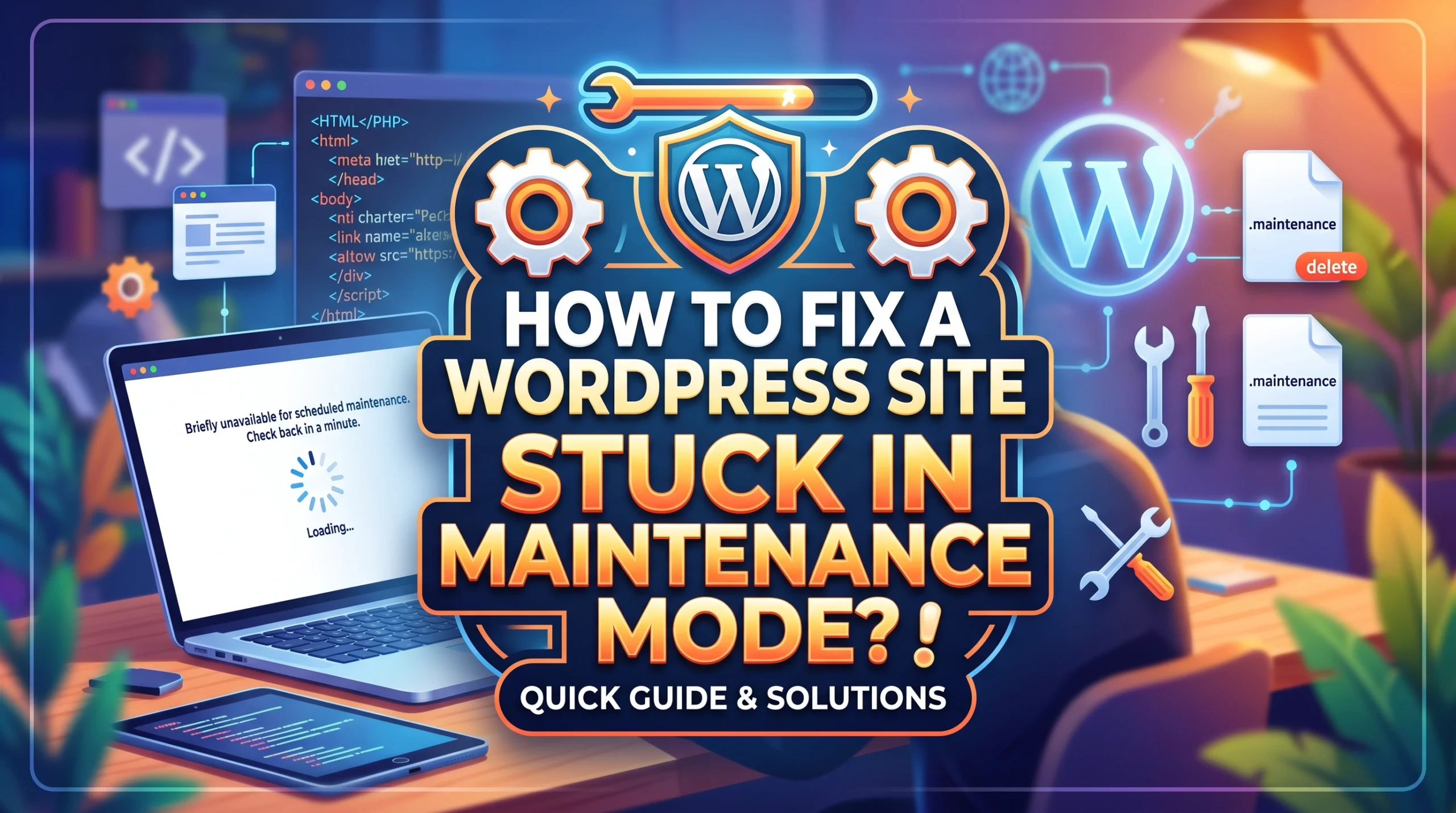
A WordPress site stuck in maintenance mode can feel stressful, especially when visitors cannot access your pages and all you see is the “Briefly unavailable for scheduled maintenance” message. The good news is that this problem is usually simple to fix. In most cases, WordPress has left behind a small .maintenance file after an update was interrupted or failed to finish. This guide will show you how to disable WordPress maintenance mode safely and get your site back online fast. You will learn why maintenance mode happens, what causes it to get stuck, and the quickest ways to fix it using your hosting file manager, FTP, or WP CLI.
Before we go step by step, here are the key points to remember when your WordPress site gets stuck in maintenance mode.
Key Takeaways
-
To fix a WordPress site stuck in maintenance mode, delete the .maintenance file from your site’s root directory. This is a quick and safe solution.
-
Always back up your site before making updates. This protects your data and allows you to restore your site if something goes wrong.
-
Update plugins and themes one at a time. This helps you identify issues early and keeps your site running smoothly.
What Is WordPress Maintenance Mode
When you update your WordPress site, it sometimes enters maintenance mode. This is a temporary state that keeps visitors from seeing your site while you make changes. Think of it like a car in a service garage. You want to make sure everything works before letting people back in. During this time, your site shows a simple message saying it’s unavailable. This helps avoid confusion or frustration for your visitors.
WordPress maintenance mode hides your site from public view while updates or technical work happen. The main goal is to give your users a smooth experience. They won’t see any broken pages or unfinished changes. WordPress does this by creating a special file called .maintenance in your site’s root folder. This file tells everyone, including search engines, that your site is just down for a short time.
Why Maintenance Mode Happens
Maintenance mode kicks in when you run updates for plugins, themes, or WordPress itself. The update process uses a function that creates the .maintenance file. While this file exists, your site sends a message to visitors and search engines that it’s temporarily unavailable. This helps protect your site from errors during updates.
Common Causes of Getting Stuck
Most of the time, maintenance mode ends on its own. Sometimes, though, your site gets stuck. Here are some common reasons:
|
Technical Issue |
Description |
|---|---|
|
Interrupted updates |
Closing your browser during an update leaves the .maintenance file behind. |
|
Server resource limitations |
Low memory or disk space can stop updates and trigger maintenance mode. |
|
File permission errors |
Wrong permissions can block the .maintenance file from being deleted. |
|
PHP script execution timeouts |
Updates that take too long can freeze your site in maintenance mode. |
|
Network connectivity interruptions |
Losing your internet connection during updates can cause problems. |
|
Database errors during updates |
Issues with your database can also keep your site stuck. |
Plugin or theme conflicts can also cause trouble. If a plugin or theme doesn’t work well with others, it might trigger maintenance mode as a safety step. Sometimes, a plugin fails to finish its update, and your site stays stuck until you fix it.
How to Disable WordPress Maintenance Mode
If you find your WordPress site stuck in maintenance mode, don’t worry. You can disable wordpress maintenance mode quickly and safely. Let’s walk through the most effective ways to get your site back online.
Remove the .maintenance File
The fastest way to disable wordpress maintenance mode is to delete the .maintenance file from your site’s root directory. You can do this using an FTP client, your hosting provider’s file manager, or SSH access. Here’s how you can do it step by step:
-
Open your FTP client (like FileZilla) or log in to your hosting control panel’s file manager.
-
Connect to your website using your FTP credentials.
-
Navigate to the root folder of your WordPress installation. This folder usually contains files like wp-config.php and wp-content.
-
Look for the .maintenance file in this directory.
-
Right-click the .maintenance file and select delete.
Tip: If you can’t find the .maintenance file, make sure your FTP client shows hidden files. Some file managers hide files that start with a dot.
After you delete .maintenance file, refresh your website. Most of the time, this will disable wordpress maintenance mode and your site will load as usual.
Keep in mind, if you remove the .maintenance file while an update is still running, your site might end up with incomplete updates. This can cause plugin or theme issues, or even security vulnerabilities. Always check that updates have finished before you disable wordpress maintenance mode.
Disable Maintenance Mode with WP-CLI
If you prefer using the command line, WP-CLI offers a quick way to disable wordpress maintenance mode. Before you start, make sure WP-CLI is installed and you’re in the right directory (where wp-config.php is located). You should also back up your site before making changes.
To deactivate maintenance mode, run this command:
wp maintenance-mode deactivate
You can also check if your site is still in maintenance mode by running:
wp maintenance-mode status
WP-CLI works well for developers or anyone comfortable with the terminal. It’s especially handy if you manage multiple sites or need to automate tasks. If you run into issues, double-check that you’re in the correct folder and that WP-CLI is set up properly.
Troubleshooting Stuck in Maintenance Mode
Sometimes, your site stays stuck in maintenance mode even after you try to disable it. Here are some common problems and how you can fix them:
-
You forgot to disable wordpress maintenance mode after finishing updates. Always remember to turn it off so visitors can access your site.
-
Your browser or server cache still shows the maintenance page. Clear your browser cache and any caching plugins or server-side caches.
-
A plugin or theme update didn’t finish. Check your plugins and themes for incomplete updates and try updating them again.
-
The .maintenance file is still present. Go back to your root directory and make sure you delete it.
-
File permissions are incorrect. If you can’t delete the .maintenance file, check your file permissions and adjust them if needed.
-
You see errors or blank pages. Review your PHP error logs to spot any fatal errors or conflicts.
Note: If you can’t resolve the issue, contact your hosting provider. Many hosts offer tools to disable maintenance mode or can restore your site from a backup.
Here’s a quick table of common mistakes and solutions:
|
Problem |
Solution |
|---|---|
|
Forgot to disable maintenance mode |
Run the WP-CLI command or delete the file |
|
Cache not cleared |
Clear browser and plugin/server cache |
|
Plugin/theme conflict |
Disable plugins/themes one by one |
|
Permission issues |
Adjust file permissions in your file manager |
Preventing Maintenance Mode Issues
You can avoid getting stuck in maintenance mode by following a few best practices:
-
Update plugins and themes one at a time. This helps you spot problems early.
-
Test your site after each update to make sure everything works.
-
Use a staging environment to try updates before making changes live.
-
Always back up your site before updating. The 3-2-1-1-0 backup method works well: keep three copies, use two types of storage, and store one copy offsite.
-
Disable automatic updates for critical plugins. Update them manually so you can monitor the process.
-
Check plugin and theme compatibility before updating.
-
Schedule regular updates. Apply security releases right away and check for plugin and theme updates every month.
Pro Tip: Regular backups protect you from data loss caused by failed updates, hardware problems, or even human error.
If you follow these steps, you’ll rarely get stuck in maintenance mode. You’ll also keep your site secure and running smoothly.
You can fix your site fast by removing the .maintenance file or using WP-CLI. Regular updates and backups help you avoid seeing the maintenance mode message again. Try these tips:
-
Automate tasks and monitor your site.
-
Optimize images and enable caching.
FAQ
How do I know if my site is stuck in maintenance mode?
You see a message like “Briefly unavailable for scheduled maintenance.” Your site won’t load as usual. Visitors can’t access your content.
Can I prevent maintenance mode from happening again?
Yes! Update plugins and themes one at a time. Always back up your site first. Test updates on a staging site if possible.
Is it safe to delete the .maintenance file?
Yes, it’s safe. Deleting this file brings your site back online. Just make sure updates have finished before you remove it.