
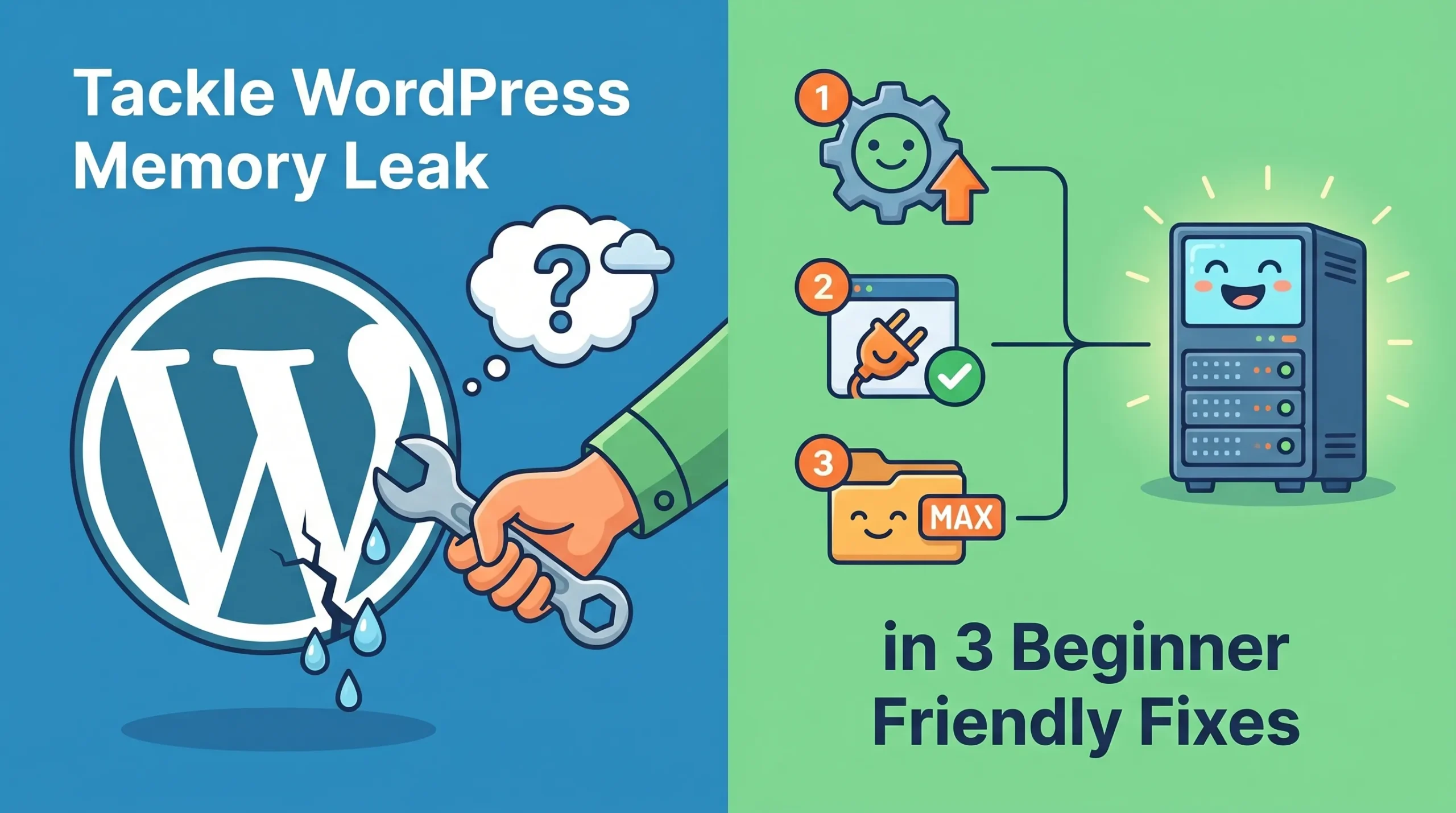
You may notice your WordPress site running slow or crashing. This often happens because of a memory leak. Many users face the same problem, so you are not alone. You can fix a WordPress memory leak without advanced skills. Most issues come from plugin problems or low memory limits in WordPress.
Next, you will learn how to spot WordPress memory leak issues.
Key Takeaways
-
Identify memory leaks by watching for signs like slow loading times and error messages. Early detection helps maintain site performance.
-
Monitor memory usage with plugins or dashboard tools. Regular checks can prevent major issues and keep your site running smoothly.
-
Increase memory limits in wp-config.php to improve performance. Adjusting memory allocation can resolve errors and enhance site speed.
-
Regularly update plugins and themes to optimize memory usage. Keeping your site current reduces compatibility issues and improves security.
-
Use caching plugins to speed up your site. Caching reduces server load and enhances user experience by delivering faster page loads.
Spotting WordPress Memory Leak Issues
Common Signs Of Memory Leaks
You may notice several signs when your WordPress site experiences a memory leak. These symptoms often appear as your site grows or when you install new plugins. Recognizing these signs early helps you maintain site performance.
-
Your site slows down during normal use.
-
Pages crash or fail to load.
-
Memory usage increases continuously until the PHP-FPM service stops working.
-
You see error messages about memory limits.
-
Deactivating plugins like Smart Slider 3 stops the issue.
WordPress memory leak problems often result from programming errors or inefficient memory management. Sometimes, hardware or driver issues cause memory not to release properly. These problems can affect your site’s stability and reliability.
Check Memory Usage In WordPress
You can monitor memory usage in WordPress using built-in tools or plugins. Tracking memory usage helps you spot leaks before they cause major problems. Many plugins display memory usage and limits directly in your dashboard.
|
Feature |
Description |
|---|---|
|
Current Memory Usage |
Shows current memory usage compared to WordPress and PHP limits in admin. |
|
Dashboard Widget |
Displays PHP version, architecture, max execution time, and peak memory usage. |
|
Memory Alerts |
Lets you set thresholds for memory usage and logs events. |
|
Real-time Display |
Provides real-time memory usage info in dashboard and admin pages. |
|
Clean Uninstall |
Removes all options and logs when you delete the plugin. |
You can use plugins like Query Monitor or your hosting control panel to check memory usage. These tools help you identify scripts or plugins that use too much memory. Deactivating plugins one by one lets you find the source of the wordpress memory leak. If your site improves after disabling a plugin, you have likely found the cause.
Memory Limit Increase & Available Memory Fix
How To Increase The Available Memory
You may need to increase the available memory if your WordPress site shows errors about the allowed memory size or slows down during heavy use. The default WordPress memory limit for single-site installations is 40MB. Multisite installations use 64MB. The admin area can use up to 256MB. For complex themes or many plugins, experts recommend a php memory limit of 256MB.
You can follow these steps to adjust the memory allocation in WordPress:
-
Log in to your hosting control panel and open File Manager.
-
Find the wp-config.php file in the root or public_html directory.
-
Select Edit to open the file.
-
Search for lines that define WP_MEMORY_LIMIT and WP_MAX_MEMORY_LIMIT. If you do not see them, add new lines.
-
Change the values to your desired limits, such as increasing ’64M’ to ‘128M’ or ‘256M’.
-
Save the changes.
define('WP_MEMORY_LIMIT', '256M');
define('WP_MAX_MEMORY_LIMIT', '256M');
⚠️ Note: Avoid setting the memory limit excessively high. This can cause poorly coded plugins to use too many resources and may trigger restrictions from your hosting provider.
What Happens After Memory Limit Increase
A memory limit increase can resolve many errors related to the allowed memory size. You may notice faster page loads and fewer crashes. Scripts can run without interruption, which improves site performance. More memory helps WordPress handle complex operations and large plugins.
You should monitor your site after making changes. Check for stability and watch for any new errors. A moderate increase in memory often fixes wordpress memory leak issues and boosts overall site health. However, setting the limit too high can hide deeper problems and lead to resource overuse.
🟢 Tip: Regularly review your memory usage in the dashboard. This helps you spot problems early and keep your site running smoothly.
Fix Plugins & Themes In WordPress
Find Problematic Plugins Or Themes
You may notice that certain plugins or themes cause most memory issues in wordpress. Some plugins, like Smart Slider 3, often use a lot of memory and can make your site crash. Users have found that deactivating Smart Slider 3 stops memory growth. Other plugins, such as W3 Total Cache, can also lead to high memory usage. The WP-Memory-Usage plugin helps you track which plugins or themes use the most memory.
To diagnose a wordpress memory leak, you can follow these steps:
-
Read your PHP error logs. These logs show if a plugin or theme causes memory problems.
-
Enable debugging in your wp-config.php file. This action helps you see detailed memory usage.
-
Use tools like Query Monitor. These tools give you real-time data about memory consumption.
-
Look for plugins that conflict with each other or themes that use too much memory.
💡 Tip: Regular updates of plugins and themes help optimize memory usage and reduce compatibility issues.
Disable Or Update Safely
You can safely fix plugin or theme issues without risking your wordpress site. First, create a development or staging site. This site is a copy of your live site and lets you test changes without affecting visitors. You can use the Health Check & Troubleshooting plugin to enter Troubleshooting Mode. This mode lets you switch to a default theme and activate plugins one by one.
Follow these steps to resolve conflicts:
-
Clear your browser cache.
-
Update all plugins and themes.
-
Use your staging site to test for conflicts.
-
Deactivate plugins one at a time to find the problem.
-
Replace or remove the problematic plugin or theme. Report any bugs to the developer.
You should decrease the number of plugins you use. Fewer plugins mean less chance of conflicts and better performance for your wordpress site.
🛠️ Note: Always test updates and changes on your staging site before applying them to your live wordpress site.
Optimize WordPress Configuration
Simple Tweaks To wp-config.php
You can improve your wordpress site’s performance by making a few simple changes to the wp-config.php file. These tweaks help manage memory usage and prevent issues like a wordpress memory leak. You do not need advanced skills to apply these changes.
-
Set different memory limits for admin and frontend operations. This approach gives the admin area more resources for heavy tasks.
if (is_admin()) { ini_set('memory_limit', '512M'); } else { ini_set('memory_limit', '256M'); } -
Define the overall memory limit for wordpress. This setting ensures your site has enough resources for plugins and themes.
define('WP_MEMORY_LIMIT', '256M'); -
Limit post revisions to reduce database size. Fewer revisions mean less data for wordpress to manage.
define('WP_POST_REVISIONS', 3); -
Extend autosave intervals to optimize memory usage. Longer intervals mean fewer autosave events.
define('AUTOSAVE_INTERVAL', 300);
To apply these changes, follow these steps:
-
Open your wp-config.php file in a text editor.
-
Scroll to the bottom until you see the comment
/* That's all, stop editing! Happy publishing. */. -
Add the new lines just before that comment.
-
Save and upload the file back to your server.
💡 Tip: Always back up your wp-config.php file before making changes.
Use Caching Plugins For Performance
Caching plugins play a key role in optimizing wordpress performance. These plugins store pre-built versions of your site, so visitors get static HTML pages quickly. This process reduces server load and speeds up page loads. By minimizing database queries and PHP executions, caching plugins help lower memory usage and reduce the risk of memory leaks.
You can expect these benefits from caching plugins:
-
Reduced server load enhances performance.
-
Improved scalability allows your site to handle more visitors.
Here are two beginner-friendly caching plugins for wordpress:
|
Plugin Name |
Purpose |
|---|---|
|
WP Super Cache |
Caching to improve performance |
|
W3 Total Cache |
Comprehensive caching solution |
You can keep your wordpress site healthy by following these three fixes for a wordpress memory leak. Regular checks and plugin updates help you avoid slowdowns and crashes. Create a simple maintenance checklist to track updates, monitor memory, and review your plugins.
-
Regular updates offer enhanced security, better performance, and improved SEO.
-
Ongoing maintenance helps you spot memory issues early and keeps your wordpress site reliable.
Stay proactive with your wordpress care. These steps protect your site and give visitors a better experience.
FAQ
What causes a memory leak in wordpress?
You often see memory leaks in wordpress because of poorly coded plugins, outdated themes, or low memory limits. These issues make your site use more memory than needed and can slow down performance.
What is the best way to check memory usage in wordpress?
You can use plugins like Query Monitor or your hosting dashboard to check memory usage in wordpress. These tools show real-time data and help you spot problems quickly.
What should you do if increasing memory does not fix the issue?
If raising the memory limit does not help, you should review your plugins and themes. Disable them one by one to find the source. Sometimes, switching to a default theme in wordpress solves the problem.
What are the risks of ignoring memory leaks in wordpress?
If you ignore memory leaks, your wordpress site may crash, slow down, or become unresponsive. Visitors may leave, and you could lose data or rankings.