Running a WordPress site can sometimes feel overwhelming when unexpected problems arise. Plugin conflicts, outdated themes, or even server misconfigurations can disrupt your website’s functionality. For instance, over 552 new plugin vulnerabilities have been reported, and 39% of WordPress vulnerabilities stem from cross-site scripting (XSS). These issues often occur due to outdated software or neglected updates, leaving your site exposed to risks.
You might also encounter technical errors like the White Screen of Death or slow website performance, which frustrate visitors and impact your goals. Finding the right solution and accessing WordPress support can help you tackle these challenges effectively. Whether you turn to a forum or seek professional help, addressing the issue promptly ensures your site remains secure and functional.
Common WordPress Issues and How to Identify Them
Plugin and Theme Conflicts
Plugin and theme conflicts are among the most common problems WordPress users face. These conflicts often occur when two plugins or a plugin and a theme interfere with each other’s functionality. You might notice broken features, unexpected errors, or even a complete site crash.
Identifying the root cause of such conflicts requires a systematic approach.
-
Clear your browser cache to rule out display issues.
-
Ensure all plugins and themes are updated to their latest versions.
-
Deactivate all plugins and reactivate them one by one to pinpoint the conflicting plugin.
-
Use an SFTP program like FileZilla to disable plugins or themes if you lose access to your admin panel.
-
Once identified, replace the conflicting plugin or theme and report the issue to the developer for help.
Taking these steps can save you time and frustration while ensuring your site remains functional.
Security Vulnerabilities
WordPress sites are frequent targets of security threats due to their popularity. Common vulnerabilities include brute force attacks, malware, and cross-site scripting (XSS). These threats can compromise your data, disrupt your site, and harm your reputation.
To protect your site, you should:
-
Use strong passwords and enable two-factor authentication.
-
Regularly scan your site for malware using security plugins.
-
Keep WordPress, plugins, and themes updated to patch known vulnerabilities.
-
Limit login attempts to prevent brute force attacks.
Proactively addressing these security threats helps safeguard your site and its visitors.
Performance and Speed Issues
Slow-loading websites frustrate users and hurt search engine rankings. Performance issues often stem from inefficient plugins, large CSS files, or excessive redirects. Third-party scripts can also slow down your site.
To improve performance:
-
Optimize your database to reduce bloat and speed up queries.
-
Minimize redirects to lower page load times.
-
Audit your plugins and remove those that negatively impact performance.
-
Compress CSS files and defer loading of non-essential scripts.
A faster site enhances user experience and keeps visitors engaged.
Common Errors and Broken Features
WordPress errors can disrupt your website’s functionality and confuse visitors. These errors often appear as warnings, missing pages, or broken features. Understanding the most common errors helps you resolve them quickly.
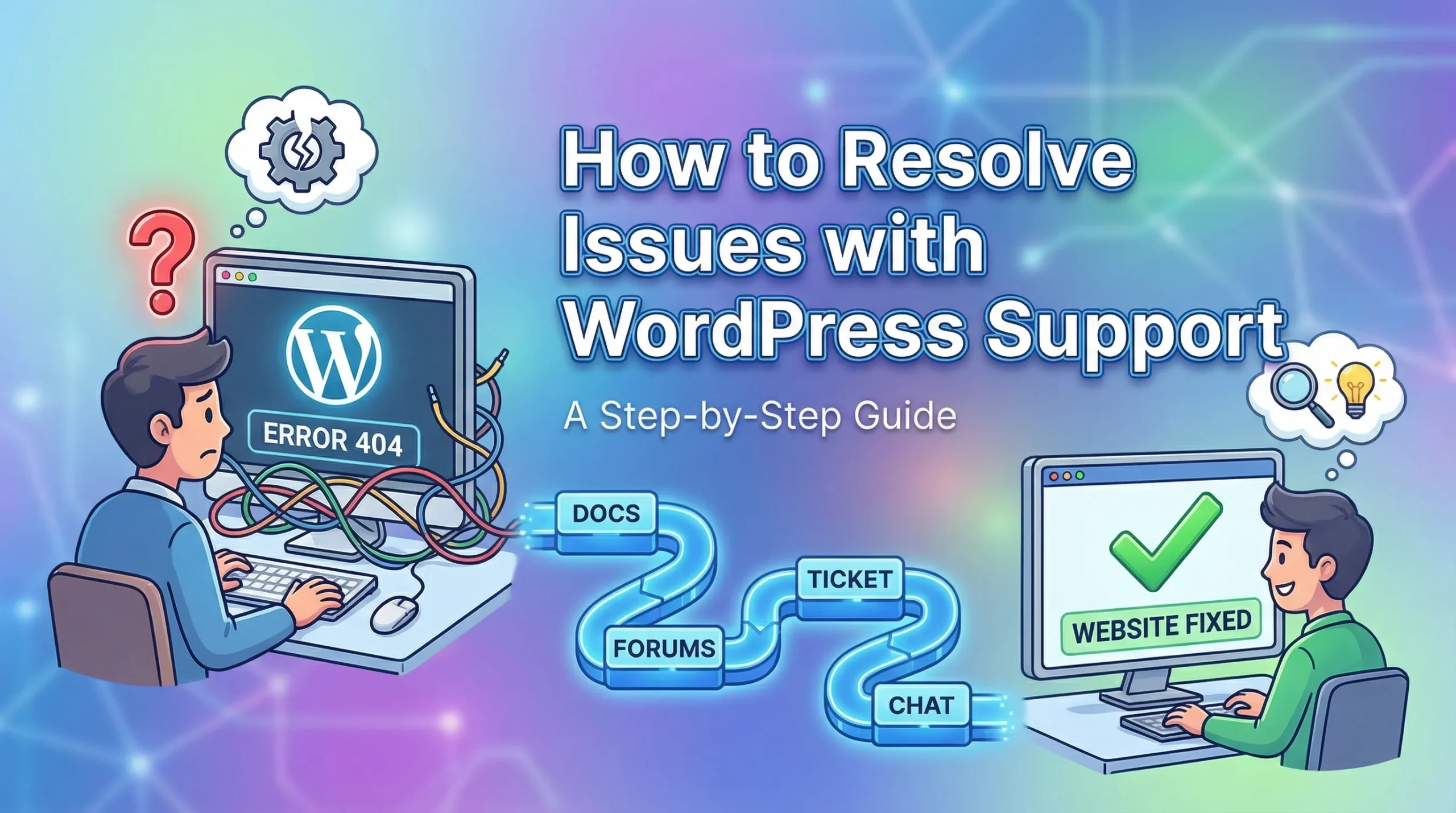
One frequent error is the “White Screen of Death.” This issue occurs when a plugin or theme fails to load properly. To fix it, deactivate all plugins and switch to a default theme. Then, reactivate each plugin one at a time to identify the culprit. If the problem persists, increase your PHP memory limit by editing the wp-config.php file.
Another common error is the “404 Page Not Found.” This happens when your site’s permalinks break. You can resolve it by navigating to Settings > Permalinks in your WordPress dashboard and clicking “Save Changes.” This action refreshes your permalink structure without altering your content.
Database connection errors also frustrate many users. These errors indicate that WordPress cannot connect to your database.
Check your wp-config.php file to ensure the database name, username, and password are correct. If the error continues, contact your hosting provider for assistance.
Broken features, such as missing images or non-functional buttons, often result from outdated plugins or themes. Update all components to their latest versions. If the issue remains, clear your browser cache and test your site in incognito mode. Addressing these WordPress errors promptly keeps your site running smoothly and enhances user experience.
Free WordPress Support Options
When you encounter a problem with your WordPress site, free resources can provide valuable assistance. These options allow you to troubleshoot issues, learn new skills, and connect with others in the WordPress community.
Using WordPress.org Support Forums
The WordPress.org support forums are a treasure trove of information. They offer free help from experts and fellow users who share their knowledge and experiences. You can ask questions, search for solutions, or even contribute by helping others.
Here’s why these forums are so effective:
-
They provide tools and strategies for troubleshooting WordPress sites.
-
You can learn by breaking and fixing a site to understand common issues.
-
Volunteers share advice on communication styles to improve collaboration.
-
Tips for using the forum software make navigation easier.
To get the most out of the forums, describe your issue clearly and include relevant details like error messages or recent changes to your site. This approach increases the chances of receiving accurate help.
Exploring Official WordPress Documentation
WordPress documentation is another excellent resource. It covers everything from basic setup to advanced customization. Whether you’re a beginner or an experienced user, you’ll find step-by-step guides to solve your problem.
The documentation includes:
-
Tutorials on installing WordPress and configuring settings.
-
Guides for using plugins, themes, and widgets effectively.
-
Instructions for troubleshooting common errors.
Bookmarking the WordPress documentation ensures you have quick access to reliable information whenever you need help.
Joining Community Groups and Online Tutorials
Community groups and online forums foster collaboration among WordPress users. These spaces allow you to seek help, share experiences, and stay updated on the latest developments. Many groups also host events, mentorship programs, and diversity initiatives.
Active communities like these offer several benefits:
-
Local meetups encourage sharing WordPress experiences.
-
Online platforms gather user feedback to improve tools and services.
-
Participation can lead to networking opportunities and innovative solutions.
Joining these groups connects you with like-minded individuals who can help you overcome challenges and grow your skills.
Tip: Combine these free resources to maximize your learning. For example, use forums for specific questions, documentation for detailed guides, and community groups for ongoing support.
Premium WordPress Support Services
When free resources don’t resolve your WordPress issues, premium support services can provide the expertise and efficiency you need. These services offer tailored solutions, saving you time and ensuring your website operates smoothly.
Contacting Hosting Provider Support
Your hosting provider often serves as the first line of defense when you encounter a problem. Many hosting companies include technical support for WordPress as part of their packages. Their teams can help with server-related issues, database errors, or even malware removal.
To get the most out of this support, prepare key details before contacting them. Include information like error messages, recent changes to your site, and the steps you’ve already taken to troubleshoot. This preparation allows the support team to diagnose and resolve your problem faster. Hosting providers also offer tools like live chat or ticketing systems, ensuring you receive timely assistance.
Reaching Out to Plugin and Theme Developers
Plugin and theme developers are valuable resources when you face compatibility or functionality issues. They understand their products best and can provide targeted solutions. Reaching out to them offers several benefits:
-
Time-saving: You can focus on other tasks while they handle the issue.
-
Faster Response Times: Dedicated support teams address your concerns quickly.
-
Adoption of Your Ticketing System: Many developers integrate with existing systems, simplifying communication.
When contacting developers, describe your problem clearly. Include details like the plugin or theme version, your WordPress version, and any error logs. This information helps them identify and fix the issue efficiently.
Benefits of Managed WordPress Hosting Services
Managed WordPress hosting services take the hassle out of website maintenance. These services handle everything from updates to security, allowing you to focus on growing your site. Here’s a breakdown of their key features and benefits:
|
Feature |
Benefit |
|---|---|
|
Speed Optimization |
Servers optimized for WordPress ensure fast performance even during high traffic. |
|
Security |
Active malware scanning and hacking attempt blocking protect your site. |
|
Expert Support |
WordPress specialists provide knowledgeable assistance. |
|
Daily Backups |
Regular backups allow easy restoration in case of issues. |
|
Automatic Updates |
Core updates are handled automatically, saving you time. |
|
No Downtime |
Websites remain online during traffic spikes, ensuring reliability. |
|
Development Tools |
Tools like staging environments simplify testing and changes. |
These features make managed hosting an excellent choice for anyone seeking reliable WordPress support. Whether you’re dealing with a complex problem or need ongoing maintenance, these services ensure your site remains secure and functional.
How to Contact WordPress Support Effectively
When you face challenges with your WordPress site, knowing how to contact support effectively can save time and ensure quick resolutions. Having the correct information and following the right steps is vital, no matter if you’re using forums, seeking help from your hosting provider, or contacting developers.
Steps to Use WordPress.org Support Forums
The WordPress.org support forum is a community-driven platform where you can get help for WordPress problems from experienced users and volunteers. To make the most of this resource, follow these steps:
-
Create a free account on WordPress.org if you don’t already have one.
-
Search the forum for similar issues before posting your question. This helps you find solutions faster.
-
When posting, describe your problem clearly. Include details like your WordPress version, theme, and plugins in use.
-
Attach screenshots or error messages to provide context. This helps others understand your issue better.
-
Check back regularly for responses and engage with those offering help.
Using the forum effectively ensures you receive accurate advice while contributing to the WordPress community.
How to Reach Hosting Providers for Assistance
Your hosting provider often plays a crucial role in resolving server-related issues. Most providers offer multiple ways to get help, such as live chat, email support, or ticketing systems. To ensure efficient assistance, prepare the following details before contacting them:
-
Provide your blog name, WordPress plan, and the theme you use.
-
Share a detailed description of the issue, including what went wrong and what you’ve tried so far.
-
Include links to affected pages, error messages, and screenshots or videos illustrating the problem.
This preparation allows the support team to diagnose and resolve your issue quickly. Hosting providers often have WordPress specialists who can address complex problems effectively.
Contacting Plugin or Theme Developers for Help
If your issue involves a specific plugin or theme, reaching out to its developer is often the best solution. Developers understand their products deeply and can provide targeted fixes. To contact them:
-
Visit the plugin or theme page on WordPress.org or the developer’s website.
-
Look for a “submit support ticket” option or a contact form.
-
Provide details like the plugin or theme version, your WordPress version, and any error logs.
Clear communication ensures developers can identify and resolve the issue efficiently. For urgent problems, consider hiring a developer for immediate assistance.
Preparing Key Information Before Seeking Support
When you reach out for WordPress support, having the right information ready can save time and lead to faster resolutions. Preparing key details ensures that support teams or community members understand your issue clearly and provide accurate solutions.
1. Gather Basic Site Information
Start by collecting essential details about your WordPress site. These include:
-
WordPress version: Check this in your dashboard under Updates.
-
Theme and plugin versions: Note the versions of your active theme and plugins.
-
Hosting provider details: Include your hosting plan and server type (e.g., shared or VPS).
This information helps support teams identify compatibility issues or server-related problems.
2. Document the Problem
Write a clear description of the issue. Include:
-
What happened: Describe the error or malfunction.
-
When it started: Mention if it occurred after an update or change.
-
Steps to reproduce: Provide a step-by-step guide to recreate the problem.
Tip: Screenshots or screen recordings can visually explain the issue, making it easier for others to understand.
3. Collect Error Messages and Logs
Error messages often contain clues about the root cause. Copy any error codes or warnings displayed on your site. If possible, access your server logs through your hosting control panel or a plugin like WP Debugging. Share these logs with support for deeper insights.
4. Back Up Your Site
Before making changes or sharing access, create a full backup of your site. Use plugins like UpdraftPlus or your hosting provider’s backup tools. This precaution ensures you can restore your site if troubleshooting causes further issues.
When to Hire Professional WordPress Maintenance Services
Advantages of Professional Maintenance Services
Hiring professional WordPress maintenance services offers several benefits that go beyond free or premium support options. These services ensure your website remains secure, functional, and optimized for performance.
-
Professionals handle all software updates, including WordPress Core, plugins, and themes.
-
They provide additional services like search engine optimization (SEO) and enhanced security measures.
One key advantage is the expertise professionals bring. They manage technical tasks, allowing you to focus on growing your business without worrying about website maintenance.
Tips for Choosing a Reliable Service Provider
Selecting the right WordPress maintenance provider requires careful consideration. Start by identifying your website’s needs and the type of maintenance required. Then, research your options and compare services.
-
Look for specialized providers with positive user reviews.
-
Ensure the service includes regular security scans, backups, and performance optimization.
-
Check for real-time uptime monitoring and 24/7 customer support.
-
Understand the pricing structure and choose a plan that fits your budget.
Asking questions about the provider’s experience and security measures can also help you make an informed decision. Reliable providers prioritize your website’s safety and performance.
Examples of Tasks Handled by Professionals
Professional WordPress maintenance services cover a wide range of tasks to keep your site running smoothly:
-
Technical Support: Experts resolve issues quickly to minimize downtime.
-
Software Updates: They ensure your WordPress Core, plugins, and themes stay updated.
-
Backups and Recovery: Regular backups protect your data and simplify disaster recovery.
-
Security Monitoring: Professionals scan for vulnerabilities and protect against cyber threats.
-
Performance Optimization: They improve load times and enhance user experience.
-
Content Updates: Keeping your site’s content fresh and engaging is another key service.
These tasks demonstrate the value of hiring professionals to maintain your WordPress site effectively.
WordPress issues can feel overwhelming, but the right resources make them manageable. Start by exploring free options like the WordPress.org forum and official documentation. These tools often provide the help you need for basic problems. For more advanced challenges, consider premium services or professional maintenance.
To keep your site secure and functional, follow these proactive steps:
-
Update WordPress, themes, and plugins regularly.
-
Install a security plugin and enable a firewall.
-
Manage user permissions carefully.
-
Enable two-factor authentication for added protection.
-
Perform regular backups to safeguard your data.
-
Choose a secure web host.
-
Monitor your site consistently for potential issues.
When advanced problems arise, strategies like restoring from a clean backup or reinstalling themes and plugins can save your site. Always prioritize security by scanning for malware and hardening your website’s defenses. With these measures, you’ll ensure your WordPress site remains reliable and optimized.