
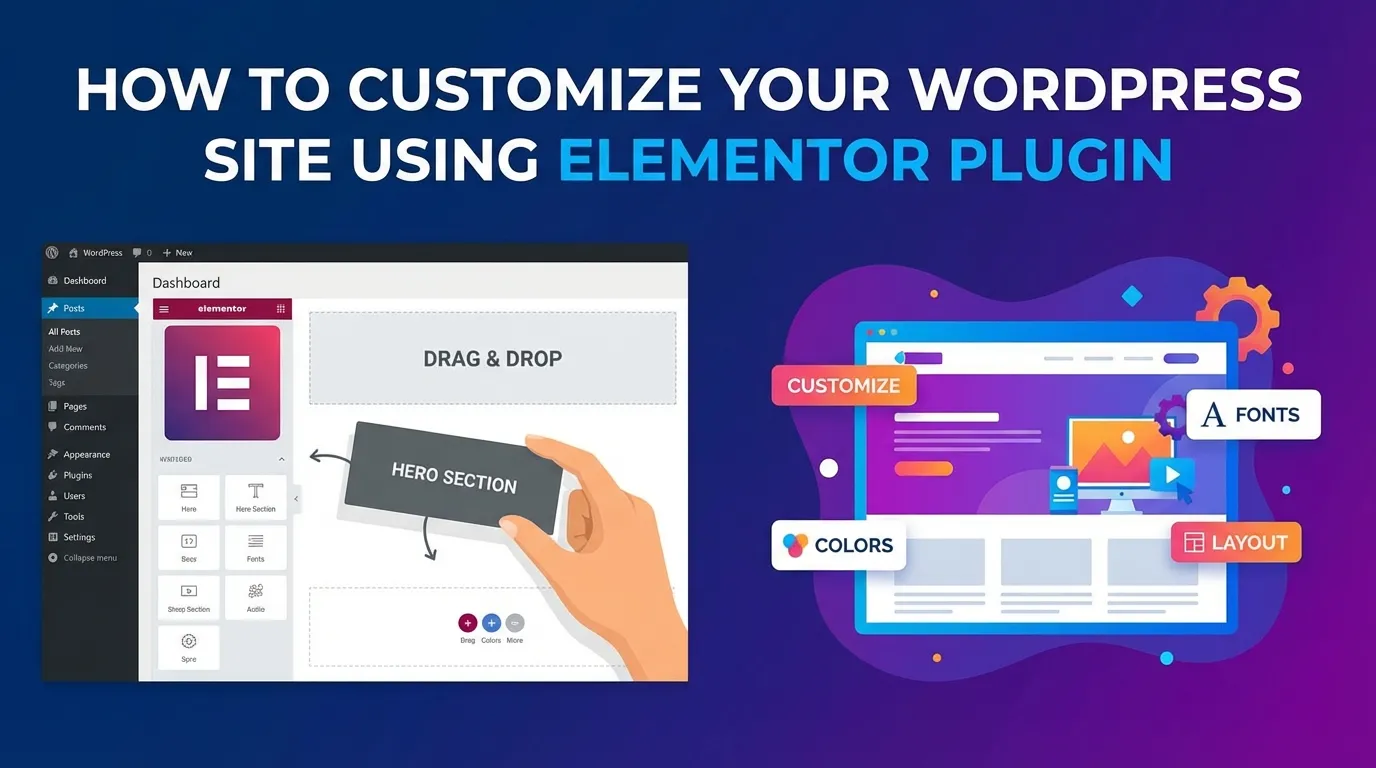
Elementor transforms how you design your WordPress site using WordPress Elementor. Its intuitive drag-and-drop interface empowers you to create stunning, mobile-responsive designs without writing a single line of code. With 15.9% of WordPress users relying on Elementor for site customization, it ranks as the second most popular plugin, just behind WooCommerce. With WordPress Elementor, you can edit in real-time, so you don’t have to constantly save and preview. This makes your work faster and easier to share.
Elementor also lets you customize a lot of different things, from simple landing pages to more complex pop-ups. Plus, it works smoothly with other tools like PayPal, MailChimp, and HubSpot, making it even more useful. With WordPress Elementor, you have the flexibility and tools to create your vision, whether it’s for a personal blog or a business website.
How to Install WordPress Plugins for Elementor
What You Need to Get Started
A WordPress site with admin access.
Before you begin, make sure you have admin access to your WordPress site. Admin access allows you to manage plugins, themes, and other essential settings. Without it, you won’t be able to install Elementor or any other plugin.
Basic familiarity with the WordPress dashboard.
Understanding the WordPress dashboard is crucial. Familiarize yourself with sections like “Plugins,” “Appearance,” and “Settings.” This knowledge will make the installation process smoother and help you troubleshoot minor issues.
Step-by-Step Guide to Install Elementor
Installing via the WordPress Dashboard.
Follow these steps to install Elementor directly from the WordPress plugin directory:
-
Log in to your WordPress admin panel.
-
Navigate to Plugins and select Add New.
-
In the search bar, type “Elementor” and locate the plugin.
-
Click Install Now and wait for the process to complete.
-
Once installed, click Activate to enable Elementor on your site.
Installing via Manual Upload.
If you’ve downloaded Elementor as a zip file, use the manual upload method:
-
Go to Plugins > Add New in your WordPress dashboard.
-
Click the Upload Plugin button at the top.
-
Select the Elementor zip file from your computer and click Install Now.
-
After installation, click Activate to start using Elementor.
Potential Challenges During Installation
Plugin compatibility issues.
Some themes or plugins may conflict with Elementor. For example, older themes might not support Elementor’s features, or other plugins could cause errors. Always check compatibility before installation. Updating your WordPress version and plugins can help avoid these issues.
Insufficient PHP memory or outdated WordPress version.
Elementor requires sufficient server resources to function properly. Low PHP memory limits or an outdated WordPress version can lead to loading errors. Increase your PHP memory limit through your hosting provider and keep WordPress updated to ensure smooth performance.
Common Mistakes to Avoid
Forgetting to activate the plugin after installation
After you install Elementor, activating it is essential. Many users overlook this step, assuming the plugin works immediately after installation. Without activation, Elementor remains inactive, and its features will not appear in your WordPress dashboard.
To avoid this mistake, always check the status of your plugins after installation. Navigate to the Plugins section in your WordPress dashboard. Locate Elementor in the list and confirm that it is marked as “Active.” If it is not, click the Activate button. This simple action ensures that Elementor integrates seamlessly with your site and becomes ready for use.
Not checking for plugin updates
Outdated plugins can cause compatibility issues and security vulnerabilities. Elementor frequently releases updates to improve performance, fix bugs, and introduce new features. Ignoring these updates can lead to errors or conflicts with other plugins or your WordPress theme. To stay updated, regularly visit the Plugins section in your WordPress dashboard. If an update is available for Elementor, you will see a notification next to the plugin name. Click the Update Now button to install the latest version.
Additionally, enabling automatic updates for Elementor can save time and ensure your site always runs on the most recent version. Avoiding these common mistakes will help you maximize Elementor’s potential and maintain a smooth website-building experience.
Getting Started with the Elementor WordPress Page Builder
Creating a New Page with Elementor
Accessing Elementor from the WordPress dashboard
To begin designing with the Elementor WordPress page builder, navigate to your WordPress dashboard. Locate the Pages section and select Add New. Once the new page opens, click the Edit with Elementor button. This action launches the Elementor editor, where you can start building your page with its intuitive interface.
Setting up a blank canvas for your design
A blank canvas ensures you have a clean slate for your design. Follow these steps to set it up:
-
Open the page settings in the Elementor editor.
-
Change the page template to Elementor Canvas.
-
Use the Hello Theme, a lightweight and minimalist option, for optimal compatibility.
This setup eliminates unnecessary elements like headers and footers, giving you full control over your design.
Adding Elements to Your Page
Using the drag-and-drop interface
Elementor’s drag-and-drop editor simplifies the design process. You can select elements from the left panel and place them directly onto your page. This visual approach eliminates the need for coding, making it accessible even for beginners. Adjusting the size, alignment, and spacing of elements is straightforward, allowing you to create a polished layout effortlessly.
Exploring basic widgets like text, images, and buttons
Elementor offers a variety of widgets to enhance your page. Commonly used widgets include:
-
Text Editor: Add and format text to convey your message effectively.
-
Image: Insert and customize images to make your page visually appealing.
-
Button: Create call-to-action buttons to guide users toward specific actions.
These widgets provide extensive customization options, enabling you to align them with your website’s branding.
Using Pre-Designed Templates
Importing and customizing templates
Pre-designed templates save time and simplify the design process. To use a template, click the Folder Icon in the Elementor editor and browse the template library. Select a template that suits your needs and import it into your page. Once imported, you can customize every element, including text, images, and colors, to match your brand.
Tips for selecting the right template for your site
When choosing a template, consider:
-
Look for templates with regular updates to ensure compatibility and security.
-
Opt for templates with reliable support and documentation for easier customization.
-
Decide between free and premium templates based on your budget and website requirements.
Using templates ensures a consistent look across your Elementor website while saving valuable time.
Benefits of Using the Elementor WordPress Page Builder
User-Friendly Interface
No coding skills required.
Elementor eliminates the need for coding, making it accessible to users of all skill levels. You can design professional websites without writing a single line of code. The grid-based editor allows you to drag and drop elements anywhere on the page, simplifying the design process. Managing sections becomes effortless as you can add, delete, or rearrange them directly within the editor.
Intuitive drag-and-drop functionality.
Elementor’s drag-and-drop interface streamlines the creation process. You can select elements from the widget library and place them exactly where you want them. The live editing feature enhances this experience by allowing you to see changes in real-time. This functionality reduces the need for constant previews and adjustments, saving you time and effort.
Time-Saving Features
Pre-designed templates and widgets.
Elementor provides an extensive library of pre-designed templates and widgets. These resources simplify the design process, allowing you to create visually appealing pages quickly. You can customize templates to match your brand, ensuring a unique and professional look.
Global widgets further enhance efficiency by enabling updates in one place, which automatically reflect across your site.
Real-time editing and preview.
The real-time editing feature of Elementor speeds up the design process. You can make changes and see the results instantly, which improves visualization and reduces back-and-forth adjustments. This feature is particularly useful for collaborative projects, as it allows team members to review and refine designs in real-time.
Flexibility and Customization
Ability to create unique designs.
Elementor empowers you to build websites tailored to your specific needs. You can integrate various plugins and add-ons to enhance functionality and achieve a personalized design. For example, ElementsKit adds over 250 ready blocks and 40 free custom widgets, giving you more options to create a standout website.
Compatibility with most WordPress themes.
Elementor works seamlessly with most WordPress themes, ensuring a smooth integration process. However, it’s essential to verify compatibility to avoid potential conflicts. Troubleshooting may involve deactivating other plugins to identify issues. Once resolved, Elementor allows you to adapt and modify your website effortlessly, ensuring it meets your requirements.
Elementor provides a flexible way to customize WordPress sites, catering to both beginners and seasoned designers. The drag-and-drop editor empowers users to build impressive layouts without needing to code. Furthermore, real-time previews streamline the design process by saving time. Finally, responsive editing tools guarantee that the site displays flawlessly across all devices.
Start using Elementor today to build anything from personal blogs to complex eCommerce stores.