
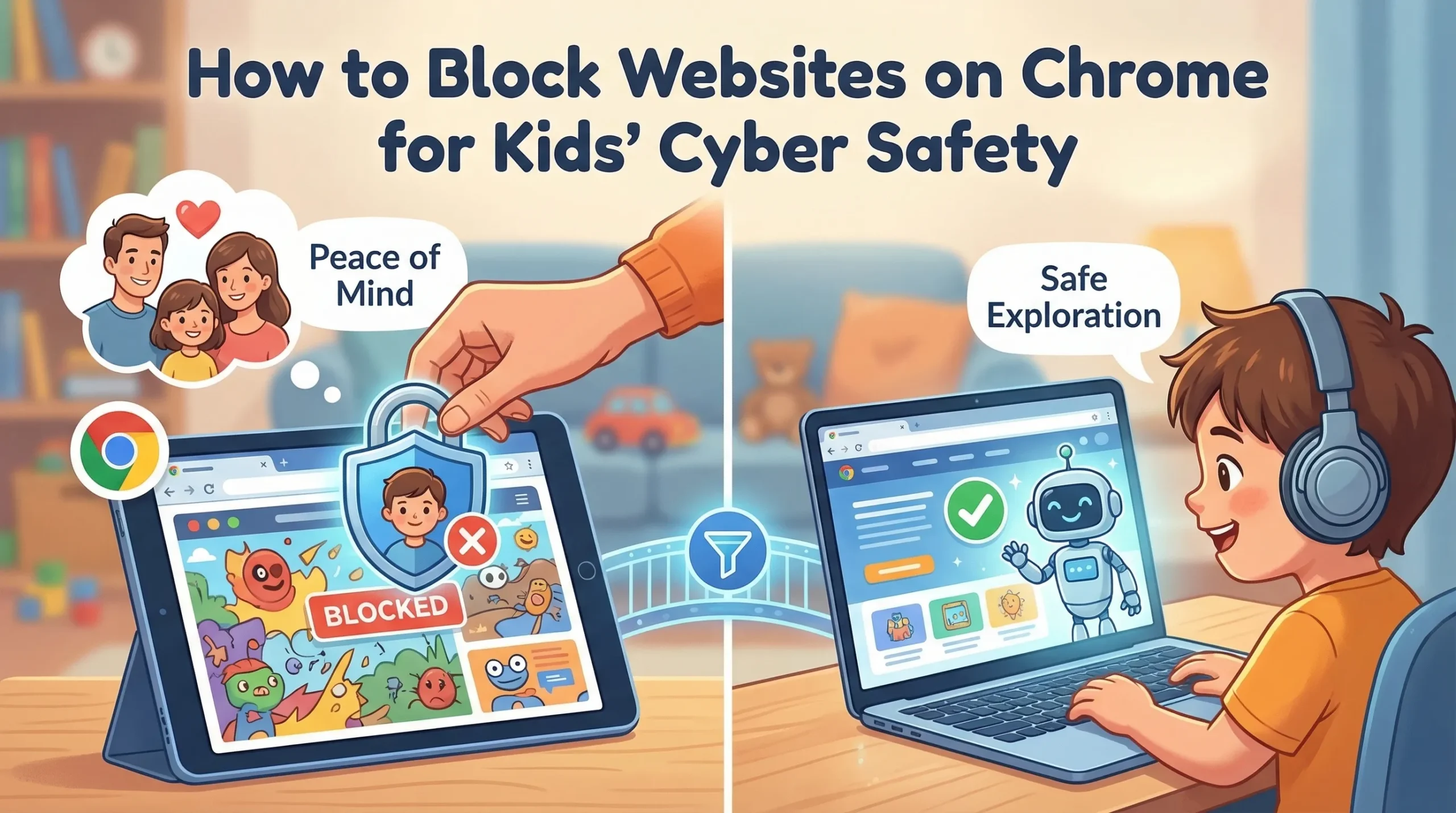
As a parent, I know how crucial it is to keep our kids safe online. The internet offers a world of knowledge and fun, but it also hides dangers. Did you know that 6 out of 10 children aged 8-12 face cyber risks? That’s alarming! Cyberbullying affects 1 in 2 kids, and online threats like phishing are common. These statistics highlight the importance of cyber safety for our children.
Thankfully, there are easy ways to ensure their safety by learning how to block websites on Chrome. I’ll guide you through how to block websites on Chrome, ensuring a safer online experience for your kids.
What You Need to Block Websites on Chrome
When it comes to keeping our kids safe online, having the right tools and understanding the requirements is essential. Below’s what you’ll need to block websites on Chrome.
Tools and Software
To start, you’ll need some essential tools and software. These will help you manage and control your child’s online activities.
Chrome Browser
First and foremost, you’ll need the Chrome Browser. It’s the foundation for setting up parental controls. Chrome offers built-in features that allow you to block specific websites. You can also use extensions like Block Site or StayFocusd to enhance these capabilities. These extensions provide additional options to restrict access to unwanted content.
Parental Control Software
Besides Chrome’s features, consider using Parental Control Software. This software provides a comprehensive approach to online safety. It allows you to monitor your child’s internet usage, set time limits, and block inappropriate websites. Some popular options include Norton Family, Qustodio, and Kaspersky Safe Kids.
These tools offer a range of features tailored to meet your family’s needs.
Device Requirements
Blocking websites on Chrome isn’t just about software; it’s also about ensuring your devices are compatible. Let’s look at the requirements for different devices.
Desktop
For desktops, ensure your computer runs a compatible operating system like Windows or macOS. Most parental control software supports these platforms. Make sure your Chrome browser is up-to-date to access the latest features and extensions.
Android
On Android devices, you can use Google’s Family Link app. It allows you to manage your child’s online activity and block websites directly from your phone. Ensure your device runs Android 7.0 or higher for optimal compatibility with parental control apps.
iOS
For iOS devices, Apple’s Screen Time feature is a powerful tool. It lets you block websites and set usage limits. Ensure your device runs iOS 12 or later to access these features. You can also explore third-party apps like Net Nanny or OurPact for additional control.
By understanding these tools and requirements, you can create a safer online environment for your kids. Remember, the goal is to empower them to explore the internet safely and responsibly.
How to Block Websites on Chrome Desktop
I distinctly recall the moment I truly grasped the significance of monitoring my children’s internet access. It was a daunting realization, but I soon found that mastering how to block websites on Chrome proved to be incredibly helpful.
Let me walk you through the process of blocking websites on Chrome via desktop, making it easier for you to protect your kids from inappropriate content.
Using Chrome Extensions
Chrome extensions offer a straightforward way to block websites on Chrome. They are user-friendly and effective, making them a popular choice for many parents.
Step-by-step Installation
-
Open Chrome Web Store: Start by launching your Chrome browser and navigating to the Chrome Web Store.
-
Search for Extensions: Type “BlockSite” or “StayFocusd” in the search bar. These are popular extensions that help block a website on Chrome.
-
Add to Chrome: Click on the extension you prefer and hit the “Add to Chrome” button. A pop-up will appear; confirm by clicking “Add Extension.”
-
Check Installation: Once installed, you’ll see the extension icon next to the address bar. This indicates that the extension is ready to use.
Configuring the Extension
-
Access the Extension: Click on the extension icon to open its settings.
-
Add Websites to Block List: Enter the URLs of the websites you want to block. You can also set specific times for blocking websites, which is handy for managing screen time.
-
Save Settings: Ensure you save your changes. The extension will now block the specified websites on Chrome.
Using Built-in Settings
If you prefer not to use extensions, Chrome’s built-in settings offer another way to block websites on Chrome.
Accessing Settings
-
Open Chrome Settings: Click on the three dots in the upper-right corner of Chrome and select “Settings.”
-
Navigate to Privacy and Security: Scroll down and click on “Privacy and Security.”
Adding Websites to Block List
-
Manage Content Restrictions: Under “Privacy and Security,” select “Site Settings.”
-
Block Specific Sites: Scroll to “Permissions” and click on “Additional content settings.” Here, you can manage blocked sites by adding URLs to the block list.
-
Save Changes: Make sure to save your settings to ensure the websites are blocked.
Blocking websites on Chrome doesn’t have to be complicated. Whether you choose to use extensions or built-in settings, both methods provide effective ways to control what your children can access online. Remember, the goal is to create a safe and secure browsing environment for your kids.
How to Block Websites on Chrome Android
Using Family Link
Google Family Link offers a comprehensive solution for managing your child’s online activities. It’s a free app that provides robust parental controls, making it easier to block websites on Chrome mobile.
Setting up Family Link
-
Download the App: Start by downloading the Google Family Link app from the Google Play Store on both your device and your child’s device.
-
Create a Family Group: Open the app and follow the prompts to create a family group. You’ll need to link your Google account with your child’s account.
-
Set Up Parental Controls: Once linked, you can access various parental controls. This includes setting screen time limits and managing app permissions.
Blocking Websites
-
Access Content Restrictions: In the Family Link app, navigate to “Manage Settings” and select “Filters on Google Chrome.”
-
Block Specific Websites: Choose “Manage sites” and then “Blocked.” Enter the URLs of the websites you want to block.
-
Save Changes: Ensure you save your settings. The app will now block the specified websites on Chrome.
Using Third-party Apps
If you’re looking for additional options, third-party apps can also help block websites on Chrome via Android. These apps offer features that complement Family Link’s capabilities.
Recommended Apps
-
Net Nanny: Known for its comprehensive parental controls, Net Nanny allows you to block websites, monitor online activity, and set screen time limits.
-
Qustodio: This app provides detailed reports on your child’s online behavior and lets you block inappropriate content.
-
Kaspersky Safe Kids: Offers real-time alerts and location tracking, along with website blocking features.
Installation and Setup
-
Choose an App: Select an app that suits your needs and download it from the Google Play Store.
-
Create an Account: Open the app and create an account. Follow the setup instructions to link your child’s device.
-
Configure Settings: Access the app’s settings to block websites. Enter the URLs you wish to restrict and save your changes.
Blocking websites on Chrome mobile doesn’t have to be complicated. Whether you use Family Link or a third-party app, these tools provide effective ways to control your child’s online environment. Remember, the goal is to create a safe and secure browsing experience for your kids.
What Else to Know About Blocking Websites
When I first started to block websites on Chrome for kids, I quickly realized that it wasn’t just about setting up restrictions. It was about creating a holistic approach to online safety. This involves not only blocking websites but also monitoring online activity and educating kids about cyber safety.
Monitoring Online Activity
Monitoring online activity is like having a window into your child’s digital world. It helps you understand their online behavior and ensures that the measures you put in place to block websites are effective.
Here are some tools that can help you keep an eye on your child’s online activities:
Tools for Monitoring
-
Qustodio: This tool offers comprehensive monitoring features. It provides detailed reports on your child’s online activity, including the websites they visit and the time spent on each site. You can use this information to adjust your website blocking strategy.
-
Norton Family: Known for its robust parental controls, Norton Family allows you to monitor your child’s online activity across multiple devices. It alerts you if your child tries to access blocked websites, helping you stay informed.
-
Kaspersky Safe Kids: This tool not only blocks websites but also offers real-time alerts and location tracking. It helps you ensure your child is safe both online and offline.
-
Google Family Link: A free app that lets you monitor your child’s online activity. It provides insights into the websites they visit and the apps they use, allowing you to make informed decisions about which websites to block.
Monitoring tools are essential for ensuring that your efforts to block websites are successful. They provide valuable insights into your child’s online behavior, helping you create a safer digital environment.
Educating Kids on Cyber Safety
Blocking websites on Chrome for kids is just one piece of the puzzle. Educating them about cyber safety is equally important. Kids need to understand why certain websites are blocked and how to navigate the internet safely. Here are some tips for educating your children about cyber safety:
Tips for Educating Children
-
Discuss Online Risks: Talk to your kids about the potential dangers of the internet. Explain why it’s important to block websites that contain inappropriate content or pose security risks.
-
Teach Privacy Settings: Show your children how to use privacy settings on social media and other websites. Emphasize the importance of keeping personal information private.
-
Recognize Threats: Help your kids identify potential online threats, such as phishing scams and cyberbullying. Teach them how to respond if they encounter these issues.
-
Encourage Open Communication: Create an environment where your kids feel comfortable discussing their online experiences. Encourage them to come to you with any concerns or questions.
Educating your kids about cyber safety empowers them to make smart decisions online. It complements your efforts to block websites, creating a comprehensive approach to online safety.
Reflecting on the journey of learning how to block websites on Chrome without using an extension, I realize the immense benefits it brings to our children’s safety. By blocking specific websites, we protect them from harmful content and enhance their focus. This approach not only safeguards their mental and physical health but also encourages healthier activities.
As parents, we hold the power to create a secure online environment. I urge you to block websites using parental controls and explore ways to block websites on Chrome without an extension.
Let’s take these steps to ensure our kids thrive in a safe digital world.